Soundstudio ZFF: Difference between revisions
| (41 intermediate revisions by the same user not shown) | |||
| Line 43: | Line 43: | ||
# Log in with “studio-guest,” password: aesrZFF-2025 | # Log in with “studio-guest,” password: aesrZFF-2025 | ||
# Load RME TotalMix ZFF Snapshot for security | # Load RME TotalMix ZFF Snapshot for security | ||
<gallery widths=600 heights=400> | |||
File: Power-switch.png | |||
File: Snapshot.png | |||
</gallery> | |||
Don't forget to save your files once you are finished! | Don't forget to save your files once you are finished! | ||
=== Patchbay === | === Patchbay === | ||
[[Media:Studio-ZFF-WiringSchematic.pdf|Studio Routing Overview]] | |||
The center piece of the studio is a Neutrik Patchbay that connects our audio equipment together. You can change connection by using patch cords that are mounted on the left side of the studio desk. The patchbay is setup so that upper row is showing only outputs while the bottom row is only inputs. The bay is half-normalized, meaning any output will automatically flow down to the input below, patching anything into the input will break the connection from the output above. When patching something from an output the output will still be present at the bottom row (signal will be splitted). | The center piece of the studio is a Neutrik Patchbay that connects our audio equipment together. You can change connection by using patch cords that are mounted on the left side of the studio desk. The patchbay is setup so that upper row is showing only outputs while the bottom row is only inputs. The bay is half-normalized, meaning any output will automatically flow down to the input below, patching anything into the input will break the connection from the output above. When patching something from an output the output will still be present at the bottom row (signal will be splitted). | ||
| Line 80: | Line 85: | ||
=== Recording with the booth === | === Recording with the booth === | ||
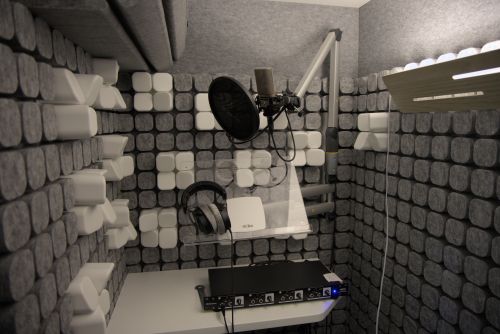
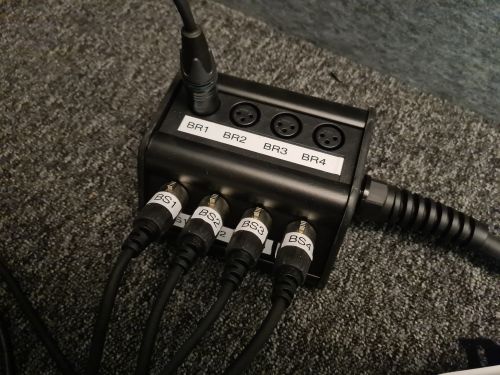
Our recording booth has a stagebox with 4 Inputs (Booth Returns or BR) and Outputs (Booth Sends or BS). So you can theoretically record with 4 channels of audio. In most cases the recording booth is used for voice and sound recordings using a single mic. The Booth Return (BR1 & BR2) on the patchbay are normalized and therefore automatically sent to the inputs 1 & 2 of the Warm Audio WA273 Microphone Preamp. Booths Returns 3 & 4 (BR3 & BR4) are not connected (NC) and need to be patched to a input if they need to be used. | Our recording booth has a stagebox with 4 Inputs (Booth Returns or BR) and Outputs (Booth Sends or BS). So you can theoretically record with 4 channels of audio. In most cases the recording booth is used for voice and sound recordings using a single mic. The Booth Return (BR1 & BR2) on the patchbay are normalized and therefore automatically sent to the inputs 1 & 2 of the Warm Audio WA273 Microphone Preamp. Booths Returns 3 & 4 (BR3 & BR4) are not connected (NC) and need to be patched to a input if they need to be used. | ||
Setting the volume of channels 1 & 2 is done by using the the db knob on the WA273. | Setting the volume of channels 1 & 2 is done by using the the db knob on the WA273. Additional HiPass to remove low frequency rumble can be used during recording using the highpass switch beneath the db knob. | ||
The WA273 i connected on input channel 1 & 2 of the RME Fireface UFX. | The WA273 i connected on input channel 1 & 2 of the RME Fireface UFX. | ||
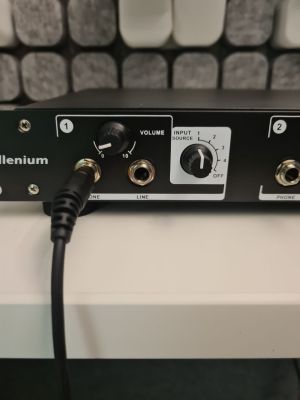
For communication between the person inside the booth and inside the control room there is a talkback mic which output is directly send to the Booth Sends 1 &2. The talkback mic is set to “push-to-talk” mode so it doesn’t transmitt any sound unless the talk button is pressed. The Booth Return 1 is automatically routed to the monitors of the studio for easier communication(beware of feedback when having the booth door open and turning up the gain of the first channel of the WA237). Inside the booth is a 4 channel headphone amplifier, that can listen either from BS 1 & 2 or BS 3&4, so you can give 2 people different headphone mixes in the booth. | For communication between the person inside the booth and inside the control room there is a talkback mic which output is directly send to the Booth Sends 1 &2. The talkback mic is set to “push-to-talk” mode so it doesn’t transmitt any sound unless the talk button is pressed. The Booth Return 1 is automatically routed to the monitors of the studio for easier communication(beware of feedback when having the booth door open and turning up the gain of the first channel of the WA237). Inside the booth is a 4 channel headphone amplifier, that can listen either from BS 1 & 2 or BS 3&4, so you can give 2 people different headphone mixes in the booth. | ||
<gallery widths=500 heights=400> | |||
File: Headphone-Preamp.jpg|Headphone Preamp | |||
File: Studio-ZFF 2.jpg|Recording Booth | |||
File: Stagebox.jpg|Stagebox | |||
</gallery> | |||
==== Settings Warm Audio WA273 ==== | |||
[[File: WA273-edit.jpg|1024 px]] | |||
# Phantom Power Switch | |||
# Preamp Gain | |||
# High Pass Filter | |||
# Output Gain | |||
# Level Meter | |||
# Instrument Input | |||
# Input Selector | |||
<span id="line-in-recording"></span> | <span id="line-in-recording"></span> | ||
| Line 101: | Line 126: | ||
Inside the lockers you can find different kind of utility tools you will need for recording like manuals, more audio cables, adapters, midi cables, power supplies, DIs | Inside the lockers you can find different kind of utility tools you will need for recording like manuals, more audio cables, adapters, midi cables, power supplies, DIs | ||
<gallery widths=600 heights=400> | |||
File: Locker1.jpg | |||
File: Locker2.jpg | |||
</gallery> | |||
<span id="faq"></span> | <span id="faq"></span> | ||
== FAQ == | == FAQ == | ||
<span id="what-to-do-if-i-can-t-hear-control-room"></span> | |||
==== What to do if you can't hear anything (Control Room)? ==== | |||
This scenario is happening when you can't hear anything from the monitors (no output when playing back sound from the Webbrowser, DAW or Media Player) | |||
<span id=" | # Check the Dangerous Music Monitor Controller. | ||
#* Speaker Source set to “AN1” | |||
#* Speaker Level turned up | |||
#* “SPKR 1” or “SPKR 2” selected | |||
# Check the patchbay | |||
#* Is something connected to ‘DS1’ and “DS2”? | |||
# Check the RME Fireface | |||
#* Is the Fireface running? (If not, press the power switch) | |||
#* Does it show an output under Main? | |||
#* Load ZFF Snapshot | |||
<span id="what-to-do-if-I-can't-hear-anythingbooth"></span> | |||
==== What to do if I can't hear anything (Booth)? ==== | |||
This Scenario is happening when you can't hear anything sent from the control room to the headphones in the booth | |||
# | # Check headphone amplifier | ||
#* | #* Is the headphone amplifier on? | ||
#* | #* Is the correct line input (“Input Source 1”) selected? | ||
#* | #* Is the volume turned up? | ||
# RME TotalMix | # Check RME TotalMix Routing | ||
#* | #* Is a signal being sent out on channels 3 and 4? | ||
#* | #* Load ZFF Snapshot to be on the safe side | ||
# | # Check Stage Box | ||
#* Is the headphone amplifier connected to BS1 & 2 | |||
====I am not receiving a signal when recording==== | |||
== | |||
# | #Check the routing | ||
# | #* Is the microphone connected to the correct channel in the booth (BR1 and BR2)? | ||
# | #* Anything plugged in the patchbay that could break the connection of the signal? | ||
# | # Check the preamp (WA 273) | ||
# | #* Check the preamp level | ||
#* For condenser microphones: Check the phantom power | |||
#* db Dial is not in Off Position | |||
# Is the Fireface UFX turned on? | |||
<gallery widths=200px heights=200px> | |||
File:Wa273-Off.png|Off position, when dial is here preamp is switched off | |||
</gallery> | |||
== Pictures == | == Pictures == | ||
Latest revision as of 14:04, 24 November 2025
Located at Rustenschacherallee 2-4 with a professional monitoring setup and a recording-booth for voiceovers.
For booking contact: aesr-lab@uni-ak.ac.at
Or via our rental-system: https://aesr-lab.uni-ak.ac.at/loan
Overview
Monitoring
- Neumann KH 310
- Adam Audio T7V
- Dangerous Music Source (Monitor Controller)
- Beyerdynamic DT-990 (Headphone)
Interfacing
- Warm Audio WA273 (2-channel Mic Preamp)
- RME Fireface UFX II (60-Kanal USB Audiointerface)
- Rean NYS (Patchbay)
- Nob (MIDI Controller)
- Mac Mini
Software
- Ableton Live Suite 12
- Avid Pro Tools
- Reaper
- iZotope Everything Bundle (with RX12 and Ozone)
- Max 8
- FabFilter Bundle
- Soundtoys Bundle
Studio-Equipment
- Doepfer A-100 (Modular System)
- Austrian Audio OC818 Studio Set (Large Diaphragm Microphone)
- Technics SL-1210 (Direct-drive Turntable)
- Pioneer XDJ-1000MK2 (USB DJ Player)
- A&H Xone:92 (DJ Mixer)
Infos
Basic Operation
- Turn on the power switch on the t.racks VM-100
- Turn on the Mac Mini (the power button is located at the rear right)
- Log in with “studio-guest,” password: aesrZFF-2025
- Load RME TotalMix ZFF Snapshot for security


Don't forget to save your files once you are finished!
Patchbay
The center piece of the studio is a Neutrik Patchbay that connects our audio equipment together. You can change connection by using patch cords that are mounted on the left side of the studio desk. The patchbay is setup so that upper row is showing only outputs while the bottom row is only inputs. The bay is half-normalized, meaning any output will automatically flow down to the input below, patching anything into the input will break the connection from the output above. When patching something from an output the output will still be present at the bottom row (signal will be splitted).

| Outputs: | RME1 | RME2 | RME3 | RME4 | RME5 | RME6 | RME7 | RME8 | WAO1 | WAO2 | NC | NC | NC | NC | NC | NC | BR1 | BR2 | BR3 | BR4 | NC | NC | P1 | P2 |
| Inputs: | DS1 | DS2 | BS1 | BS1 | BS3 | BS4 | WAL1 | WAL1 | RME1 | RME2 | RME3 | RME4 | RME5 | RME6 | RME7 | RME8 | WAM1 | WAM2 | NC | NC | NC | NC | NC | NC |
Glossary Patchbay Acronymns
- RME: RME Fireface UFX III Inputs/Outputs
- DS1/2: Analog Line Input Dangerous Music Monitor Controller
- WAO: Analog Line Out Warm Audio WA273
- WAL: Analog Line Input Warm Audio WA273
- WAM: Analog Mic Input Warm Audio WA273
- BR: Booth Return
- BS: Booth Send
- P: XLR Inputs on frontpanel
- NC: Not connected
Recording
Recording with the booth
Our recording booth has a stagebox with 4 Inputs (Booth Returns or BR) and Outputs (Booth Sends or BS). So you can theoretically record with 4 channels of audio. In most cases the recording booth is used for voice and sound recordings using a single mic. The Booth Return (BR1 & BR2) on the patchbay are normalized and therefore automatically sent to the inputs 1 & 2 of the Warm Audio WA273 Microphone Preamp. Booths Returns 3 & 4 (BR3 & BR4) are not connected (NC) and need to be patched to a input if they need to be used.
Setting the volume of channels 1 & 2 is done by using the the db knob on the WA273. Additional HiPass to remove low frequency rumble can be used during recording using the highpass switch beneath the db knob.
The WA273 i connected on input channel 1 & 2 of the RME Fireface UFX.
For communication between the person inside the booth and inside the control room there is a talkback mic which output is directly send to the Booth Sends 1 &2. The talkback mic is set to “push-to-talk” mode so it doesn’t transmitt any sound unless the talk button is pressed. The Booth Return 1 is automatically routed to the monitors of the studio for easier communication(beware of feedback when having the booth door open and turning up the gain of the first channel of the WA237). Inside the booth is a 4 channel headphone amplifier, that can listen either from BS 1 & 2 or BS 3&4, so you can give 2 people different headphone mixes in the booth.
-
 Headphone Preamp
 -
 Recording Booth
 -
 Stagebox


Settings Warm Audio WA273

- Phantom Power Switch
- Preamp Gain
- High Pass Filter
- Output Gain
- Level Meter
- Instrument Input
- Input Selector
Line In recording
Line Signals can easily be captured by pluggin in the singal to one of the RME inputs on the patchbay (RME 1-8 lower row). Line Singals can also be sent from the recording booth via the Booth Returns to the control room.
Utilities
Inside the lockers you can find different kind of utility tools you will need for recording like manuals, more audio cables, adapters, midi cables, power supplies, DIs


FAQ
What to do if you can't hear anything (Control Room)?
This scenario is happening when you can't hear anything from the monitors (no output when playing back sound from the Webbrowser, DAW or Media Player)
- Check the Dangerous Music Monitor Controller.
- Speaker Source set to “AN1”
- Speaker Level turned up
- “SPKR 1” or “SPKR 2” selected
- Check the patchbay
- Is something connected to ‘DS1’ and “DS2”?
- Check the RME Fireface
- Is the Fireface running? (If not, press the power switch)
- Does it show an output under Main?
- Load ZFF Snapshot
What to do if I can't hear anything (Booth)?
This Scenario is happening when you can't hear anything sent from the control room to the headphones in the booth
- Check headphone amplifier
- Is the headphone amplifier on?
- Is the correct line input (“Input Source 1”) selected?
- Is the volume turned up?
- Check RME TotalMix Routing
- Is a signal being sent out on channels 3 and 4?
- Load ZFF Snapshot to be on the safe side
- Check Stage Box
- Is the headphone amplifier connected to BS1 & 2
I am not receiving a signal when recording
- Check the routing
- Is the microphone connected to the correct channel in the booth (BR1 and BR2)?
- Anything plugged in the patchbay that could break the connection of the signal?
- Check the preamp (WA 273)
- Check the preamp level
- For condenser microphones: Check the phantom power
- db Dial is not in Off Position
- Is the Fireface UFX turned on?
-
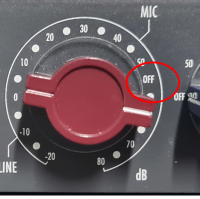 Off position, when dial is here preamp is switched off


